

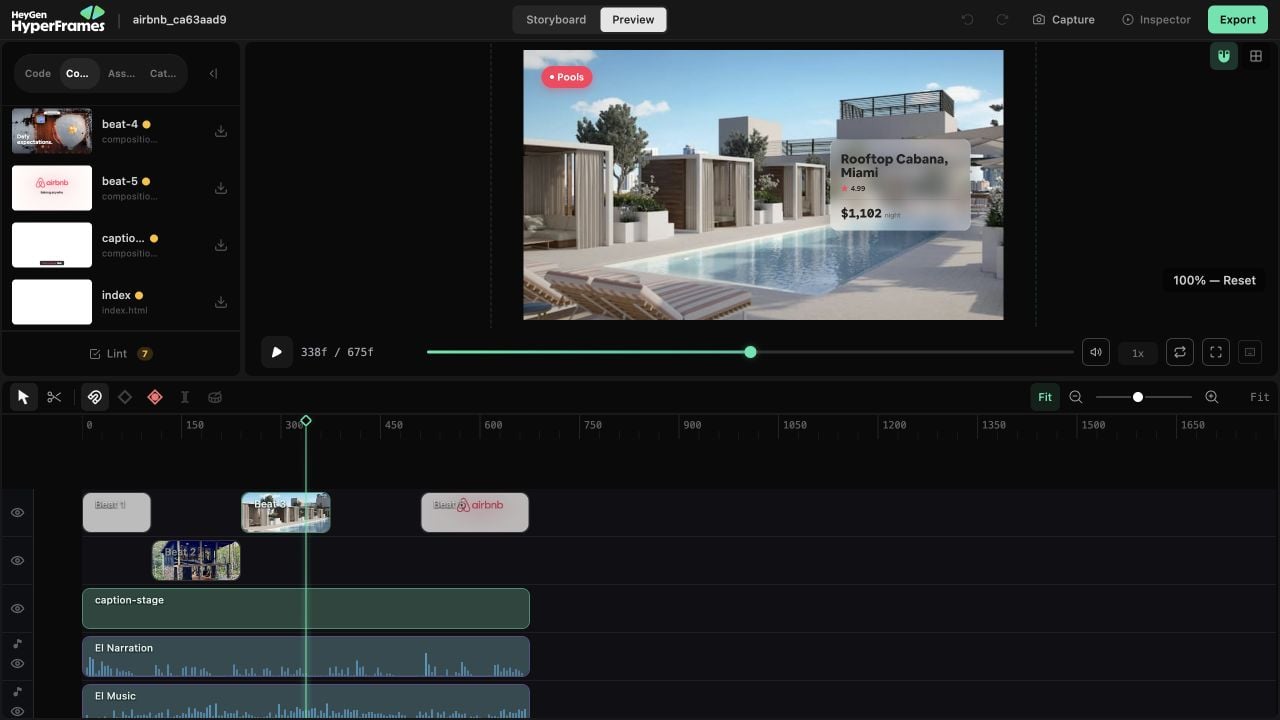
The Studio workspace: project navigation, canvas, Inspector, playback, and timeline remain connected to the same project files.
Open the project
From the HyperFrames project folder, run:First, understand the two views
Storyboard: review the plan
Check the sequence, direction, status, narration, and agent feedback before focusing on individual pixels.
Preview: review the built result
Play the video and work with the canvas, Inspector, timeline, Code, Assets, Catalog, Variables, and Renders.
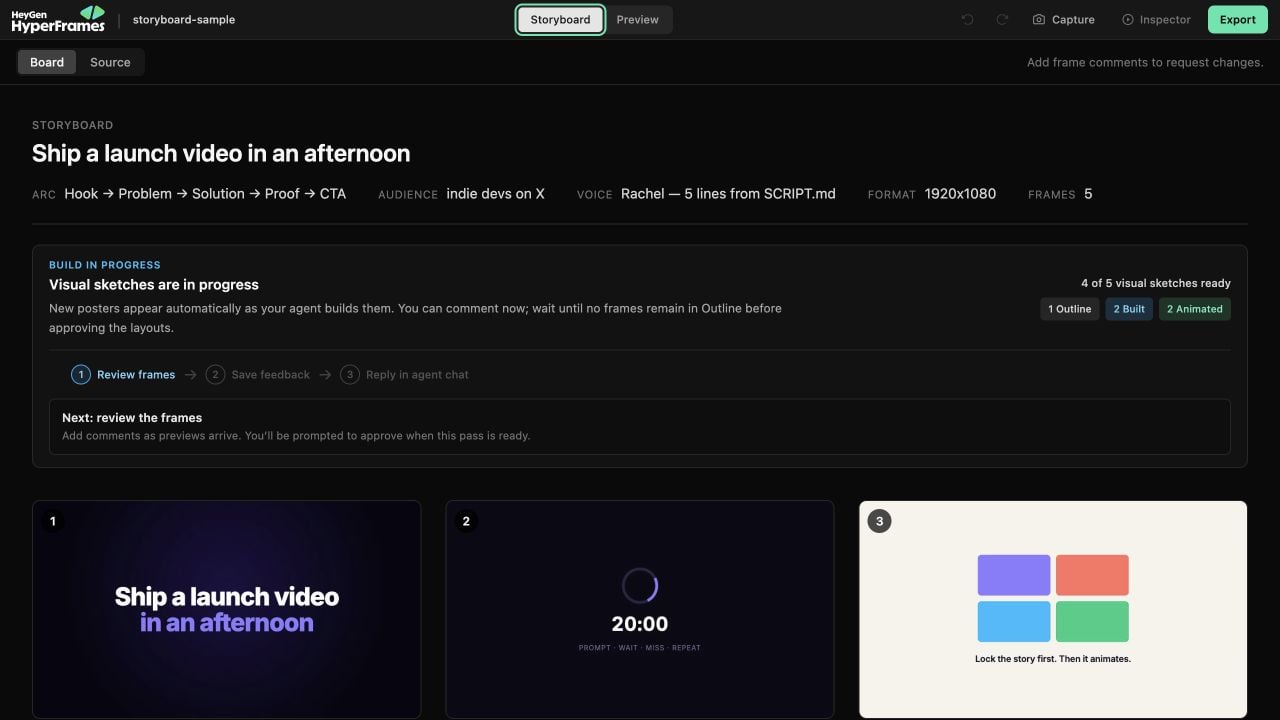
Storyboard: the plan and running order, before you focus on individual pixels.
The safest review order
1
Review the storyboard
Confirm that the sequence and intended message still make sense.
2
Watch the complete result once
Resist fixing the first imperfect detail immediately. Notice where the story becomes unclear, slow, unreadable, or visually repetitive.
3
Choose one visible task
Use the pages below for the specific change instead of learning every Studio control.
4
Run a quick check
Resolve visible warnings or copy the generated message to your agent when the fix requires source work.
5
Export a named version
Keep useful iterations rather than overwriting the only file you can compare.
What do you want to change?
Text, layout, or design
Select, move, resize, rotate, crop, and style something you can see.
Timing or clip order
Move, trim, split, align, and organize clips.
Animation
Adjust keyframes, easing, motion paths, or recorded movement.
Media or a reusable visual
Import a file, reuse a project asset, or add something from the Catalog.
Captions or variables
Correct transcript timing and text, or update reusable project values.
Export a version
Choose a format and resolution, render, and review the output.
Studio or agent?
If you can point at the exact thing, start in Studio. If the change spans several scenes or needs new source material, describe the outcome to the agent instead.Finish safely
Before sharing:- Play the entire project from the beginning.
- Check the final frame and audio ending.
- Run the available lint or project check.
- Export a version with a useful name.
- Watch the exported file once.
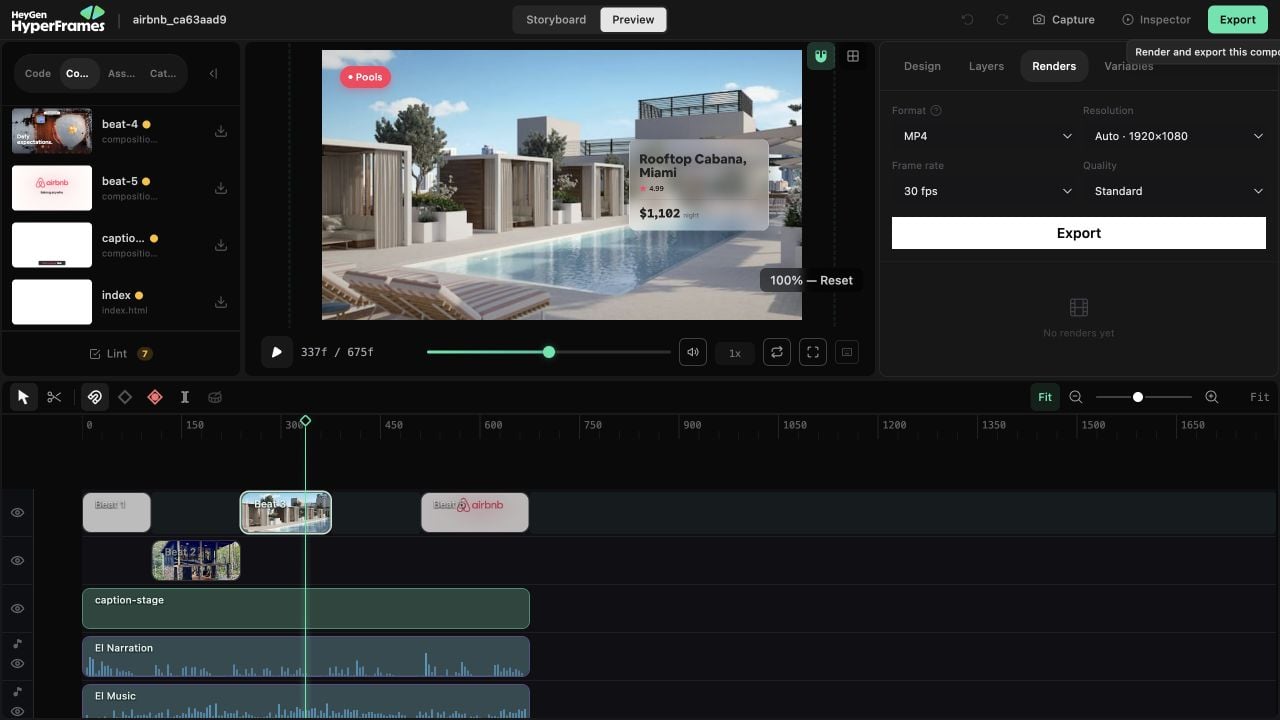
When it is readyExport a version →Pick a format and resolution, watch the render queue, and keep named versions you can compare instead of overwriting the only file you have.
Faster with the keyboard? See the shortcuts. If something blocks the task, start from the visible symptom, or read Studio troubleshooting.